Introduction
The PlayStation 5 offers a superior gaming experience, thanks in part to its versatile hardware features, including USB ports. These ports are crucial for connecting peripherals, charging controllers, and expanding storage. Knowing where each port is located and how to use it will help you optimize your gaming setup. This guide will provide detailed information about the USB ports on the PS5, empowering you to make the most of your console.
Overview of PS5 USB Port Locations
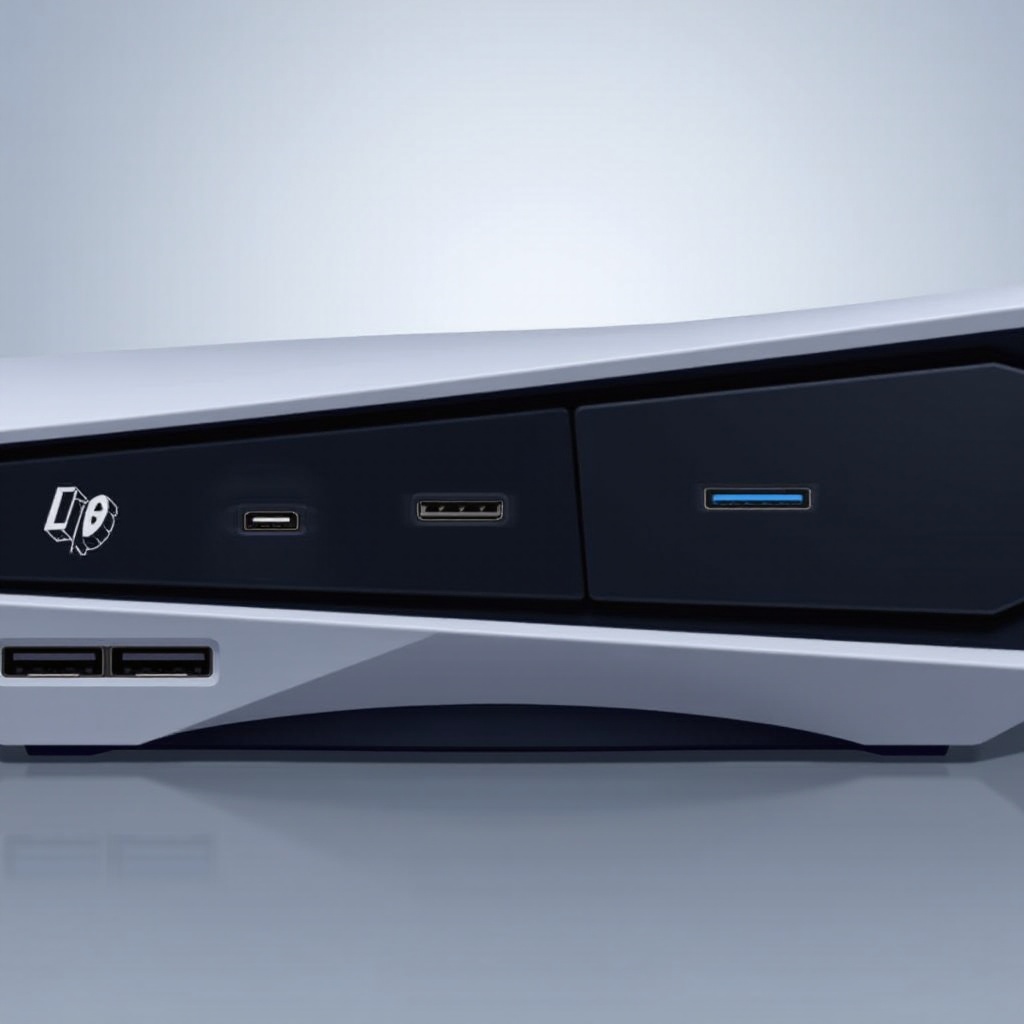
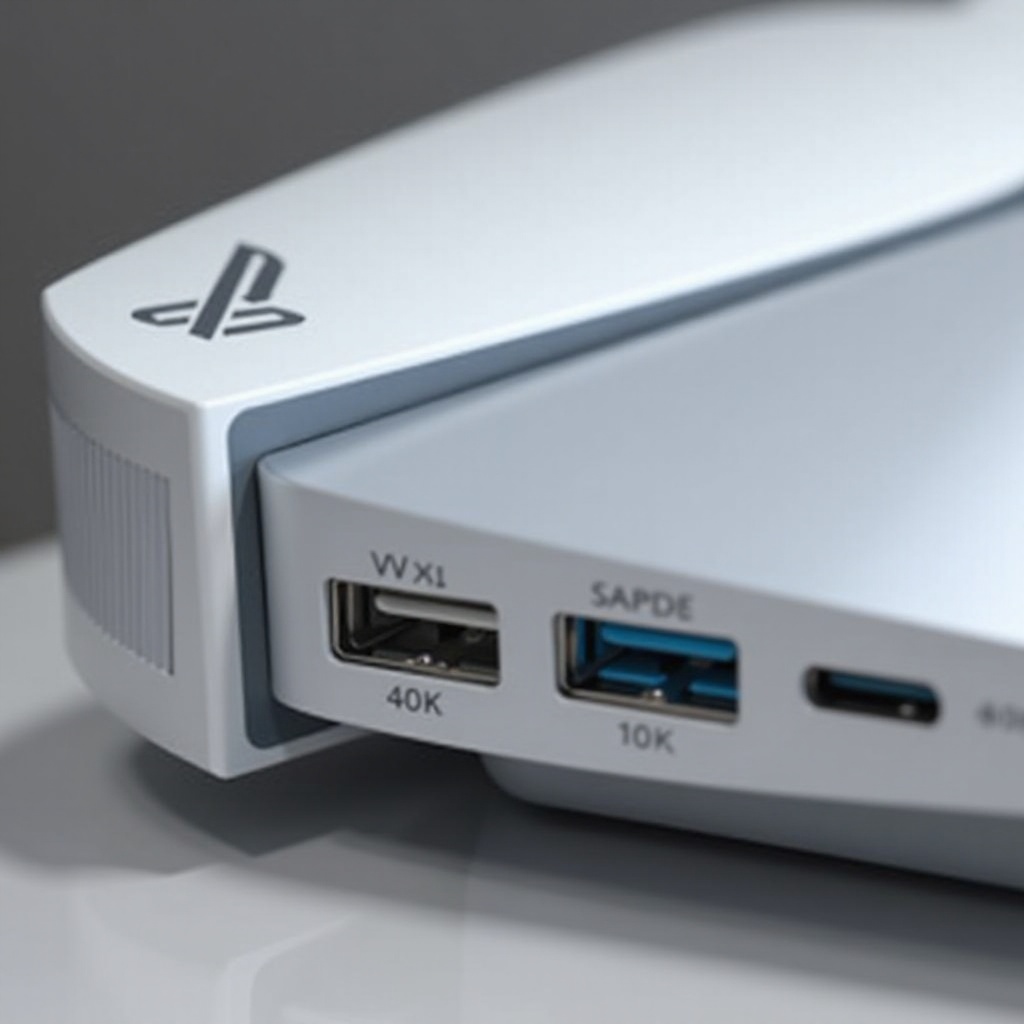
To get the best out of your PS5, you need to know where the USB ports are located. This will help you set up your gaming environment more efficiently. The PS5 features two conveniently located USB ports on the front panel: one USB Type-C port and one USB Type-A port. These are perfect for devices needing frequent access, like charging cables. On the rear, two additional USB Type-A ports serve well for devices that are generally left plugged in, such as external storage drives. By understanding these locations, you can ensure a tidy and functional gaming setup.
Types of USB Ports on the PS5
The inclusion of both USB-A and USB-C ports on the PS5 makes it a flexible machine, ready to tackle a wide variety of devices:
-
USB-A Ports: These ports are the traditional ones that have been used for years. They can accommodate a wide range of accessories, such as headphones, external drives, and older peripherals.
-
USB-C Port: This is a more modern port found on the front of the PS5. It’s known for faster data transfer rates, making it ideal for quick charging and connecting new-generation devices.
Having both options available ensures that you won’t be left behind as technology advances.
Best Uses for Each USB Port Type
Knowing which port to use for each device can help streamline your gaming setup:
-
Front USB-A for Controllers and Quick Access Devices: This port is ideal for fast connections — whether it’s for charging controllers or connecting a camera or microphone temporarily.
-
Rear USB-A for Permanent Installations: These are optimal for devices you don’t frequently move, like long-term storage solutions or a VR setup.
-
USB-C for Fast Data Transfer and Future-Proof Connectivity: This port supports high-speed data transfer and charging, making it perfect for newer, tech-savvy gadgets.
Each port’s specific use enhances the efficiency and neatness of your gaming area.
How to Effectively Use PS5 USB Ports
USB ports are there to make your gaming experience smoother. Here are some strategies to maximize their use:
- Charging Controllers: Use the front USB-A port for quick and easy access to charge your wireless controllers.
- External Storage: Connect external storage solutions to the rear USB-A ports to expand your storage capacity. Make sure they are properly formatted to work with the PS5.
- Utilizing USB-C: For swift data transfer or charging, plug into the USB-C port. Whether it’s a camera, an SSD, or a smartphone, this port handles modern devices with ease.
- Cable Management: Organize your cables to keep the workspace clean and avoid tripping over wires.
- Stay Future-Ready: Expand your setup with additional hubs if needed, preparing for increased device connections.
Employing these techniques will keep your gaming area efficient and future-proof.
Troubleshooting Common USB Port Issues
Occasionally, issues may arise with the USB ports. Here’s a quick guide to resolving them:
- Device Not Detected: Ensure the device is compatible. Unplug and replug it, or try using another USB port.
- Slow Data Transfer: Use high-speed cables and check for damages. Always opt for the USB-C port when transferring large files.
- Power/Charging Issues: Verify that the device is within the port’s power limits. Restart the PS5 if charging does not begin immediately.
- Interference with Gameplay: Tighten connections and minimize wireless interference by ensuring peripherals are secured.
Resolving these issues ensures you maintain optimal device performance.
Conclusion
Knowing the location and purpose of the USB ports on your PS5 can significantly improve your setup and gaming experience. Proper utilization of these ports allows for seamless gaming, whether you’re charging equipment, transferring data, or connecting other devices. Armed with this knowledge, your PS5 setup will be more organized and efficient, keeping you ahead in the gaming world.
Frequently Asked Questions
How many USB ports are there on the PS5?
The PS5 has four USB ports: one USB-C and one USB-A on the front, and two USB-A ports on the back.
Can I use any USB device with the PS5 ports?
Most USB devices are compatible with the PS5, but ensure they meet the console’s specifications.
What should I do if my USB port is not working on the PS5?
Try disconnecting and reconnecting the device, switching to another port, or restarting the console.