Resolving Roku Content Disabled HDCP Unauthorized Errors
Roku content disabled HDCP unauthorized messages can disrupt your viewing experience at the worst moments. These annoying issues reflect a breakdown in communication between your Roku device and TV due to problems with HDCP, a form of digital content protection. If you’re plagued by this issue, you’re not alone; it’s a common problem with a relatively straightforward solution. This guide will walk you through understanding and resolving these errors so you can enjoy uninterrupted streaming.
Understanding HDCP and Its Impact on Roku Devices
HDCP, or High-bandwidth Digital Content Protection, plays a crucial role in preventing illegal content copying. It does this by creating a secure connection between your streaming device and television. However, when this connection falters, it can lead to the dreaded HDCP Unauthorized errors on your Roku.
What is HDCP?
HDCP is a form of digital copy protection developed by Intel that prevents illegal copying of digital content as it travels across connections like HDMI or DVI. This protection ensures that digital video content cannot be intercepted, protecting the intellectual property rights of content creators.
How HDCP Ensures Content Protection?
HDCP works by encrypting the signal as it leaves your Roku and decrypting it at the point it reaches your TV. If anything alters this secure ‘handshake’ along the way, your devices won’t display the content properly. Thus, the HDCP system ensures both your Roku and TV are communicating under the same security protocols.
Why Roku Users Encounter HDCP Issues?
Although HDCP is essential, it often becomes problematic. Issues arise from several points, be it outdated technology in either your TV or Roku, incompatible connection setups, or even something as simple as a loose HDMI cable. Understanding these triggers can help troubleshoot effectively.
Moving from understanding to action, knowing the causes helps in tackling the solutions more effectively. Here, we delve into the most common causes of these errors.
Common Causes of HDCP Unauthorized Errors on Roku
HDCP Unauthorized errors commonly stem from a few potential sources, but tackling them is simpler once you understand the typical causes.
Incompatible or Faulty HDMI Cables
- Cause: Poor or damaged HDMI cables can obstruct proper HDCP communication.
- Solution: Check and, if necessary, replace your HDMI cables with high-speed, compliant ones.
Outdated Roku Software
- Cause: An out-of-date Roku device might not support the latest HDCP versions.
- Solution: Ensure your Roku is running the latest software. Navigate to Settings > System > System update to verify and update your device.
Television Compatibility Problems
- Cause: Some older televisions may not support newer HDCP standards.
- Solution: Check your TV model specifications for HDCP compatibility, or consider using a different HDMI input that may support the protocol better.
Armed with knowledge about the causes, you can now approach fixing these errors with confidence. Here’s how to handle them step by step.
How to Fix HDCP Unauthorized Errors on Roku
Here’s a step-by-step guide to resolving these errors:
Inspecting and Replacing HDMI Cables
- Disconnect and reconnect the HDMI cables.
- Ensure all connections are firm and make good contact.
- Swap out your current HDMI cable for one that is high-quality and HDCP-compliant.
Updating Your Roku Device
- Navigate to Settings on the Roku home screen.
- Select System > System update to check if a new update is available.
- Follow the onscreen instructions to complete the update.
Restarting Roku and Television
- Turn off your Roku by unplugging the power.
- Turn off your television and unplug it from the wall.
- Wait for about a minute, then plug both devices back in and turn them on.
Adjusting TV Display Settings
- Access your TV’s display options from the settings menu.
- Adjust the resolution settings to ensure compatibility with your Roku device.
- Test various settings if necessary to see which works without triggering HDCP errors.
Still facing issues? Other methods might help resolve more stubborn cases.
Advanced Troubleshooting Methods
For those still experiencing issues after trying the above solutions, here are additional measures:
Utilizing an HDMI Splitter
An HDMI splitter might bypass HDCP by stripping the protocol. However, proceed with caution, as this may violate terms of service agreements.
- Acquire an HDMI splitter that supports your device specifications.
- Connect the splitter to your Roku and TV setup.
- Test to see if the error persists.
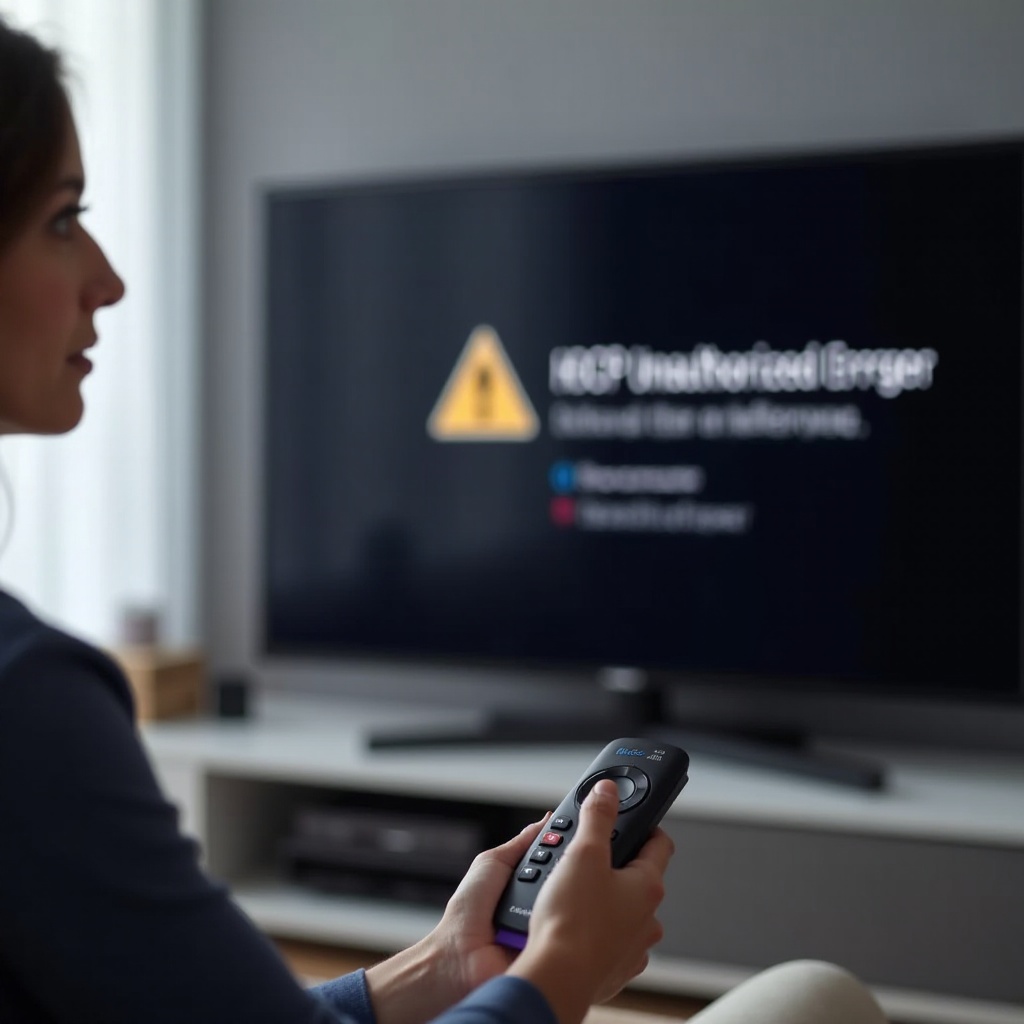
Professional Technical Support
If all else fails, seeking help from professionals can be the best course. They can conduct comprehensive checks and provide a lasting solution to your problem.
Prevention can save you from the headache of dealing with these issues in the future.
Preventing Future HDCP Issues
Proactive measures can go a long way in preventing these errors from reoccurring.
Regular Equipment Maintenance
Periodically check cables and connections for wear and tear, replacing any that are faulty.
Keeping Firmware Updated
Regularly update the firmware of all your components—Roku, TV, and any other attached devices—to ensure seamless HDCP compatibility.

Conclusion
Handling HDCP Unauthorized errors effectively on your Roku device doesn’t have to be a hassle. By understanding the causes and solutions, you can regain seamless streaming quickly. If you’re faced with persistent errors, exploring advanced troubleshooting methods or professional help can prevent frustration. With these tips, you can avoid future interruptions and enjoy your Roku device to its fullest potential.
Frequently Asked Questions
Why does my Roku keep saying HDCP unauthorized?
Your Roku might display this error due to issues with HDMI cable connections or compatibility problems between your TV and the Roku device.
Can a new HDMI cable fix HDCP errors?
Yes, replacing your HDMI cable with a high-quality, HDCP-compliant cable can often resolve these errors effectively.
Is it legal to bypass HDCP with an HDMI splitter?
While some HDMI splitters can bypass HDCP, using them may violate terms of service agreements with content providers or device manufacturers. Proceed with awareness.