Introduction
Have you ever struggled with sticky keys or noticed dirt beneath your MacBook keyboard, wondering if you can safely remove them for cleaning? Understanding how to correctly take off these keys can save you trips to the repair shop and extend the life of your device. By following this guide, you will gain the skills needed to handle this delicate task with confidence.
Understanding MacBook Keyboards
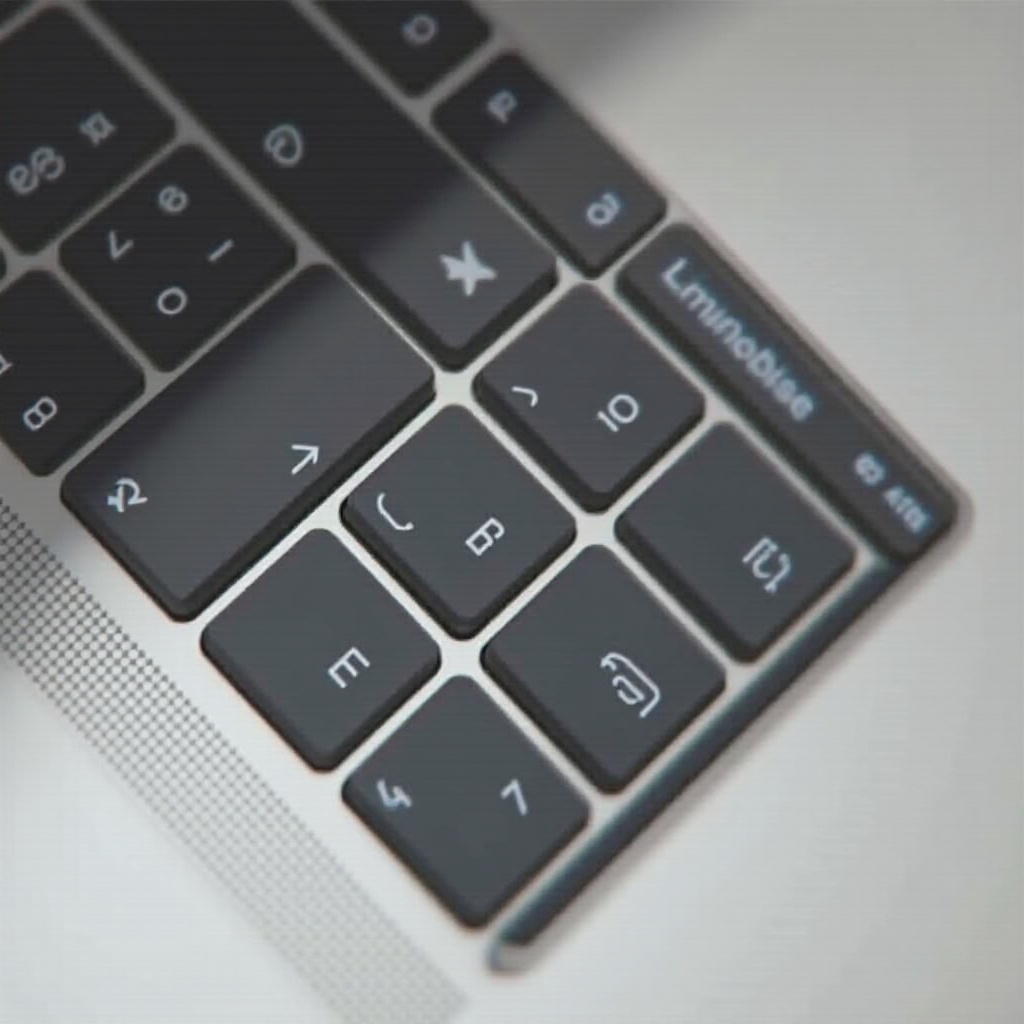
MacBook keyboards are renowned for their sleek design, which varies slightly by model. Knowing your keyboard type is the first step before removal. There are two main types: older models feature a scissor-switch mechanism, while newer ones have a butterfly mechanism. This difference influences how you’ll handle the keys.
-
Types of MacBook Keyboards: The scissor-switch mechanism, found in older models, offers longer key travel and more durable construction, whereas the butterfly mechanism—known for its slim profile—might need gentler handling during key removal.
-
Key Structure and Mechanism: Each key consists of a keycap, a hinge, and an underlying mechanism. A proper understanding of these components helps avoid unwanted damage and ensures smooth removal and reattachment.
Familiarizing yourself with these differences will prepare you for the removal process and help maintain keyboard longevity.
Preparing for Key Removal
Preparation is the cornerstone of efficiently removing MacBook keys. Having the correct tools and environment can simplify the procedure and prevent potential mishaps.
-
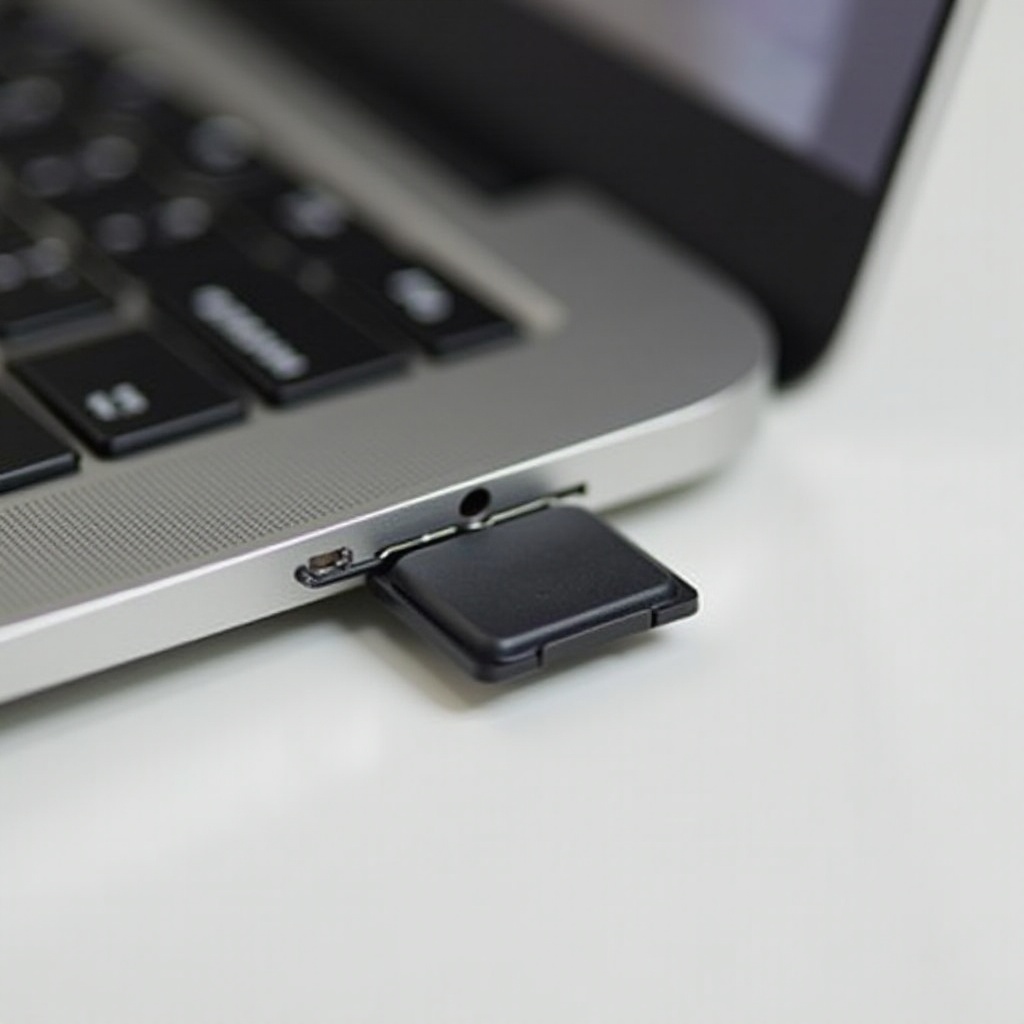
Necessary Tools: Gather small tools like a flathead screwdriver or a specialized plastic tool for prying, a can of compressed air for dust removal, and a microfiber cloth for cleaning.
-
Setting Up Your Workspace: Arrange a well-lit area with a soft cloth or mat on a flat surface. This provides a stable working environment and catches small components such as hinges that might dislodge during key removal.
Equipped with the right tools and setup, you’re ready to proceed with removing keys safely and effectively.
How to Remove MacBook Keys Safely
The removal of MacBook keys must be done carefully to avoid damaging the delicate mechanisms.
-
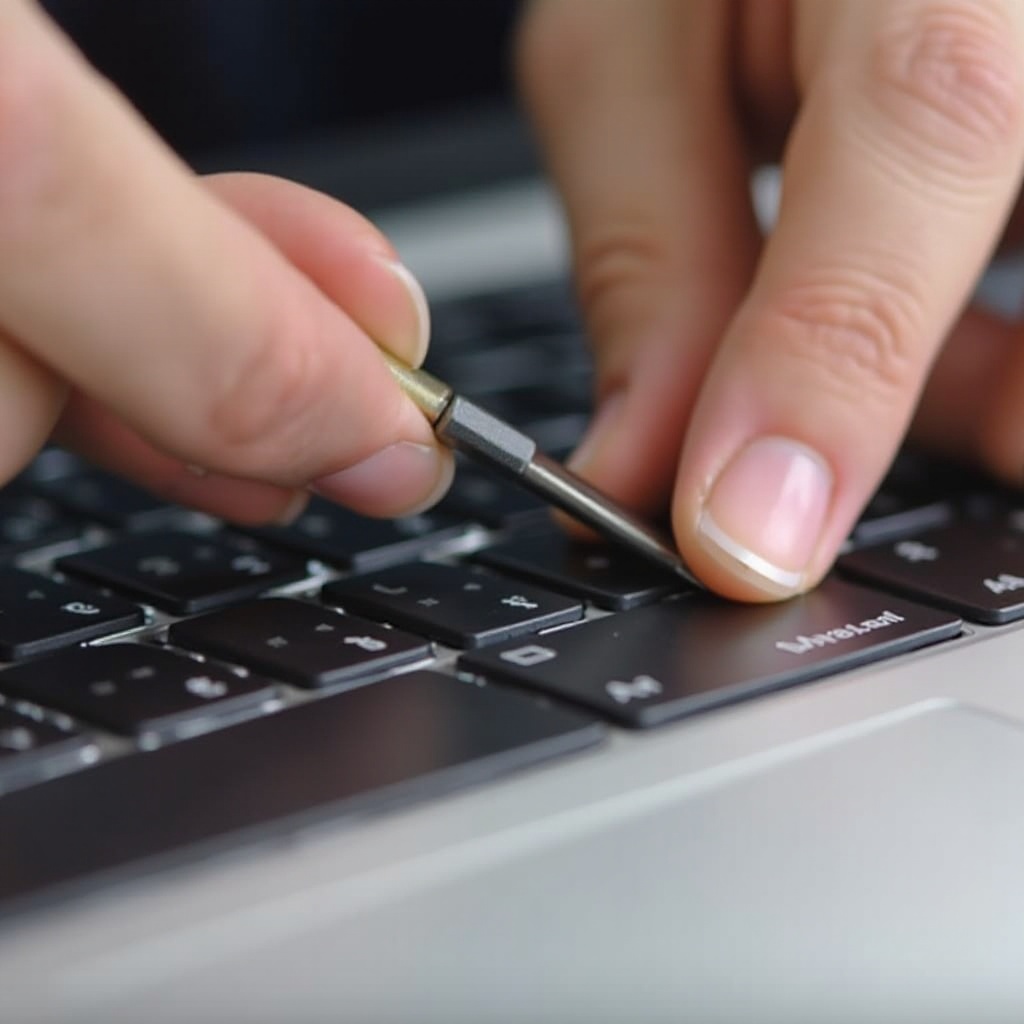
Removing Keys from Older MacBook Models: Begin by gently inserting a flathead screwdriver under the edge of the keycap. Tilt the tool to lift the keycap gently without applying too much force. Once loose, remove it and set it aside carefully.
-
Handling Butterfly Keyboards: For these newer models, start at one corner of the keycap with a thin tool. Gently lift the key until it clicks out of place. The butterfly mechanism, being flatter, requires extra care to avoid damaging it.
-
Tips for Newer MacBook Models: With newer models, patience is key. Their design demands careful handling to ensure an easy and damage-free key removal.
With these steps, you can remove your keys safely, setting the stage for cleaning or maintenance.
Troubleshooting Common Issues
Even with the best preparation, challenges can arise during key removal. Knowing how to handle these issues will save time and prevent damage.
-
Keys not Detaching Easily: If a key refuses to come off, never force it. Try wiggling it gently or re-aligning your tool. Sometimes repositioning helps in loosening the keycap without damage.
-
Damage to Key Mechanisms: In the event a mechanism is damaged, it may need realignment or replacement. Examine the hinge or rubber dome for breaks or misalignment.
Addressing these issues promptly ensures a smooth reassembly and maintains keyboard functionality.
Replacing and Maintaining MacBook Keys
Once the keys are off and the area cleaned, it’s time to reassemble. Proper replacement and maintenance are crucial.
-
Cleaning Under the Keys: Use compressed air to remove dust and debris. A microfiber cloth can help to wipe away any remaining particles. A clean surface ensures that keys function properly post-reassembly.
-
Reattaching Keys Properly: Align the keycap with the hinge and press down gently until it clicks into place. Ensure even pressure is applied across the keycap to secure it fully. Test the key’s response to confirm proper reattachment.
Regular cleaning and mindful reattachment keep your MacBook keys in optimal condition, avoiding unnecessary wear and tear.
Conclusion
Successfully removing and reattaching MacBook keys can significantly extend the life of your keyboard. By using this guide, you’ll perform these tasks with confidence, ensuring your device functions at its best. These careful practices are essential for maintaining your MacBook’s usability and appearance over time.
Frequently Asked Questions
Can I remove keys from any MacBook model?
Yes, you can remove keys from any MacBook model, but be aware of the differences in mechanisms between older and newer models.
What should I do if a key doesn’t work after reattaching?
Ensure the key is properly aligned and clicked into place. Check the hinge or rubber dome for damage if issues persist.
Is it safe to clean under my MacBook keys regularly?
Yes, cleaning under keys regularly can prevent dust buildup. Carefully follow the removal procedures to avoid damage.