Introduction
Accessing the Ludex Card Scanner on your computer can unlock a multitude of capabilities for card collectors. Whether you are a beginner or an experienced user, knowing how to log into the Ludex Card Scanner on a computer is essential. This guide will walk you through each step, ensuring a seamless login process.
System Requirements
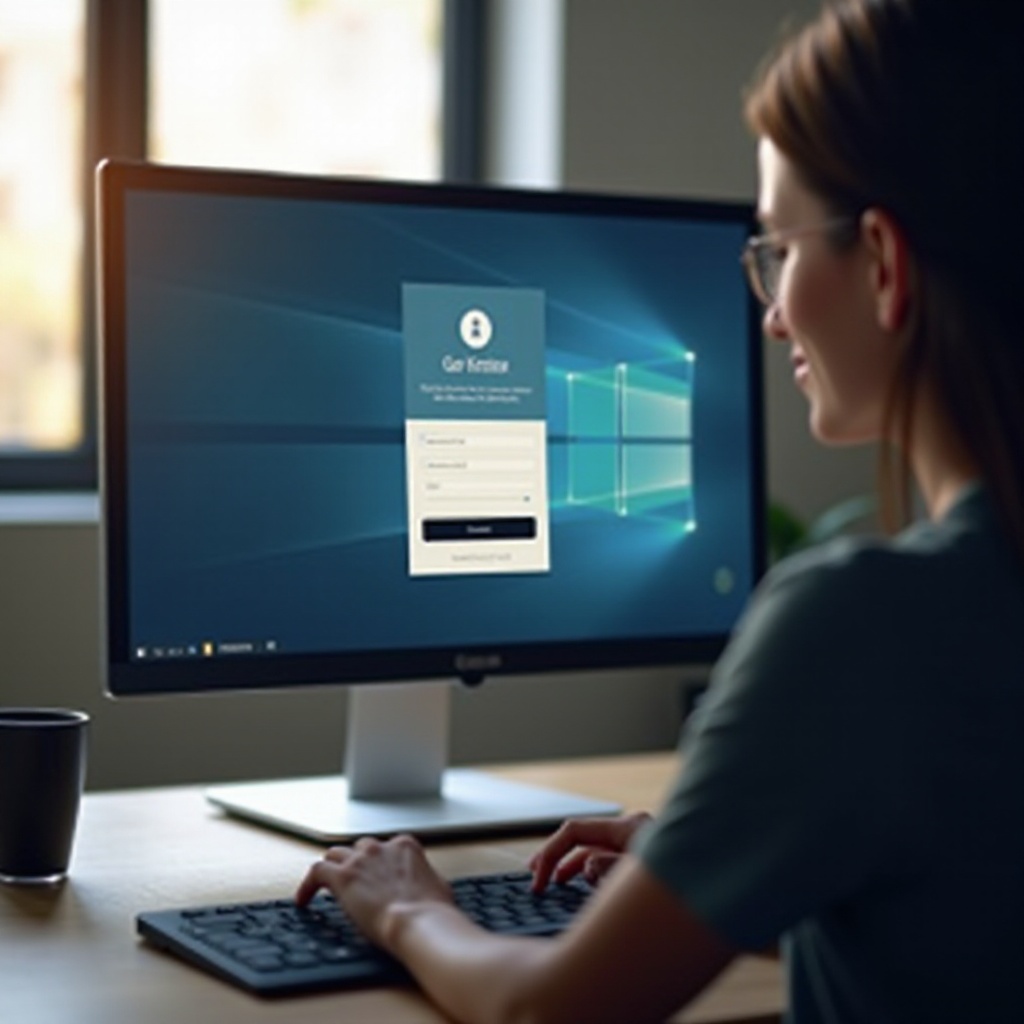
Before downloading and installing the Ludex software, it’s crucial to ensure that your computer meets the necessary system requirements. These requirements will guarantee that the software runs smoothly:
- Operating System: Windows 10 or higher / macOS 10.13 or higher.
- Processor: Intel Core i5 or equivalent.
- Memory: A minimum of 8GB RAM.
- Storage: At least 500MB of free space.
- Internet Connection: A stable broadband connection.
Meeting these requirements will ensure compatibility and optimal performance, preventing any potential issues during and after installation.
Downloading and Installing Ludex Software
Once you have verified that your system meets the requirements, proceed to download and install the Ludex software:
- Visit the Website: Go to the Ludex official website.
- Download the Installer: Navigate to the download section and select the appropriate version for your OS.
- Run the Installer: Locate the downloaded file and double-click to run the installer.
- Follow Instructions: Follow the on-screen instructions to complete the installation. Ensure to agree to the terms and conditions.
- Finish Installation: Once the installation is complete, you may find a Ludex icon on your desktop.
Now that the software is installed, it’s time to create your Ludex account.
Creating a Ludex Account
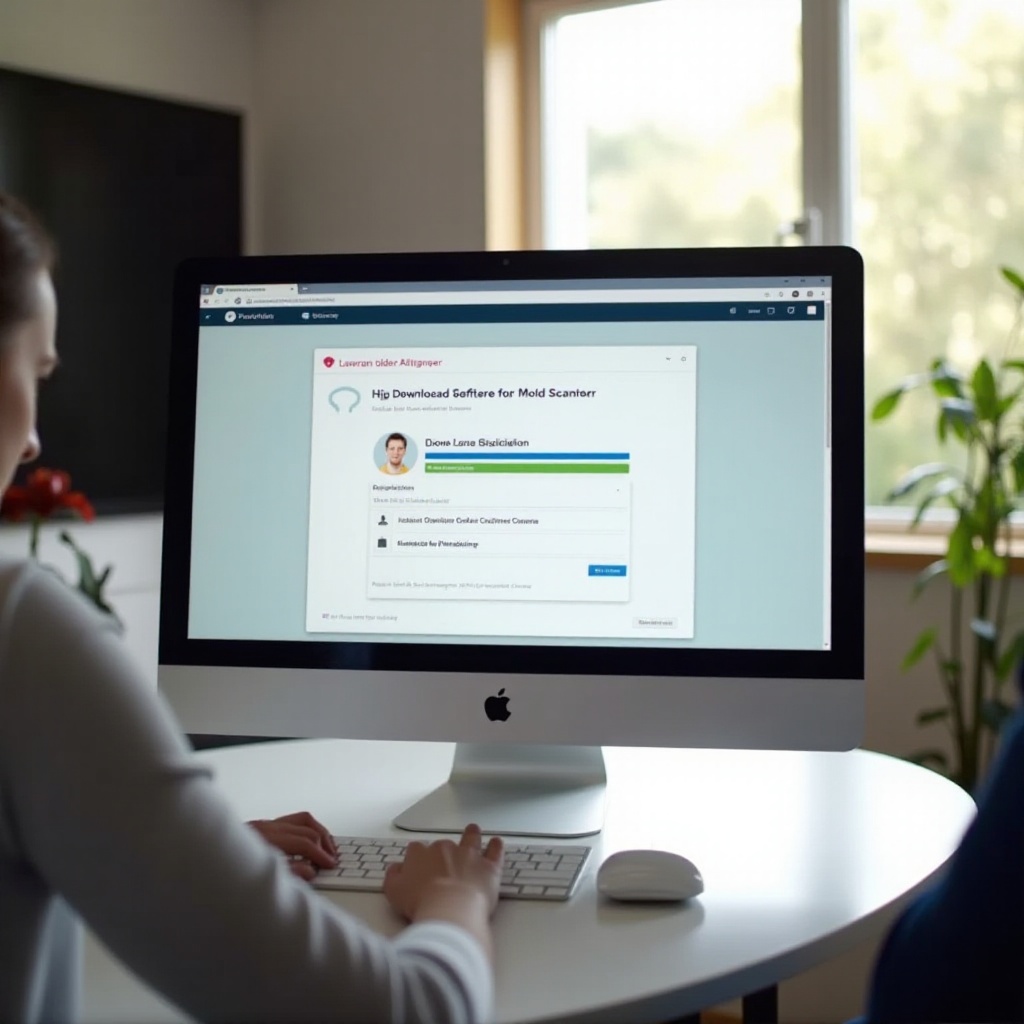
Creating a Ludex account is straightforward and allows you to access all the features of the card scanner:
- Open the Application: Double-click on the Ludex icon to launch the application.
- Sign Up Option: Click on the ‘Sign Up’ button located on the login screen.
- Enter Information: Fill in the required details such as your name, email address, and a strong password.
- Verify Email: Check your email for a verification link and click on it to verify your account.
- Log In: After email verification, return to the Ludex application and log in using your credentials.
Creating your account is a one-time process, setting the stage for future logins.

Logging into the Ludex Card Scanner
With your Ludex account created, you are now ready to log in and start using the card scanner.
Launching the Application
- Open Ludex: Double-click the Ludex icon on your desktop.
- Startup Process: Wait for the application to initialize, which may take a few seconds.
Entering Login Credentials
- Username and Password: On the login screen, enter your registered email address and password.
- Remember Me: If this is your personal and secure computer, check the ‘Remember Me’ option for easier future logins.
- Log In: Click on the ‘Log In’ button to proceed.
Utilizing Two-Step Verification
For added security, enable two-step verification:
- Navigate to Settings: After logging in, go to the settings menu.
- Enable Two-Step Verification: Follow the instructions to activate this feature, typically involving a code sent to your email or phone.
- Enter Verification Code: Each time you log in, you will need to enter the verification code received.
This additional security step helps protect your account from unauthorized access.
Navigating the Software Interface
Once logged in, you’ll be greeted by the Ludex interface which is user-friendly and feature-rich.
Overview of Main Features
- Scanner Functionality: Access the scanning tool for identifying card details.
- Database Access: Look up a vast database of cards for comparison.
- Collection Management: Organize and manage your card collection seamlessly.
Customizing User Settings
- Profile Settings: Update your personal information and password from the settings menu.
- Preferences: Adjust preferences related to scanning, notifications, and display to enhance your user experience.
- Notifications: Set how often you receive updates on new features and card values.
Tips for Regular Use
- Regular Updates: Keep the software updated for new features and improvements.
- Backup Data: Regularly backup your collection data to avoid loss.
- Explore Tutorials: Utilize in-app tutorials to become proficient with all features.
Navigating through the interface regularly will help you maximize the potential of the Ludex Card Scanner.
Troubleshooting Common Login Issues
Despite the streamlined process, you might encounter some login issues occasionally. Here are common problems and their solutions:
Password Recovery
If you forget your password:
- Click on Forgot Password: On the login screen, click ‘Forgot Password.
- Follow Instructions: Enter your registered email address to receive a reset link.
- Reset Password: Use the link to set a new password.
Account Lockout Solutions
If your account gets locked due to multiple failed login attempts:
- Wait: Typically, waiting for a small period will unlock your account.
- Contact Support: If the issue persists, contact Ludex support for assistance.
Resolving Software Compatibility Problems
If the software isn’t working properly:
- Update OS: Ensure your operating system is up to date.
- Reinstall Ludex: Uninstall and reinstall the Ludex application to fix any corrupted files.
Addressing these issues promptly will ensure uninterrupted access to your Ludex Card Scanner.
Conclusion
Logging into the Ludex Card Scanner on your computer is a simple process when broken down into manageable steps. From meeting system requirements to troubleshooting common issues, each step ensures you can make the most of this powerful tool with ease.
Frequently Asked Questions
What should I do if I forget my Ludex password?
Use the ‘Forgot Password’ option on the login screen, follow the prompts to receive a reset link via email, and set a new password.
How can I ensure my Ludex account is secure?
Enable two-step verification from the settings menu and use a strong, unique password to protect your account.
Where can I get help if I encounter issues with the Ludex Card Scanner?
Contact Ludex support via their official website or consult the in-app help section for troubleshooting resources.