Introduction
Experiencing sound issues with your Samsung phone can be incredibly frustrating, especially when you depend on it for communication, notifications, and entertainment. These problems can often emerge unexpectedly, leaving you scrambling for a solution. Fortunately, there are several troubleshooting steps you can take to restore the audio on your device. This guide aims to cover a wide range of solutions to fix the problem of sound not working on your Samsung phone.
Check Volume and Sound Settings
The first step in resolving sound issues involves checking your phone’s volume and sound settings. This ensures that a simple setting isn’t inhibiting audio output.
-
Verify Volume Levels: Begin by pressing the volume up button on the side of your phone to check if the phone is muted or set to low volume. You can also review volume settings for media, ringtones, and notifications via the control panel.
-
Check for Mute and Silent Modes: Access the quick settings by swiping down from the top of the screen. Confirm that the device isn’t on silent or vibrate mode, which can inadvertently mute audio.
If these simple adjustments do not resolve the issue, consider the likelihood of more complex causes.
Restart Your Samsung Device
A quick restart can often resolve temporary glitches including sound problems. This process refreshes your phone’s operations, potentially resolving small bugs that affect sound functionality.
- Press and hold the power button until the menu appears.
- Select ‘Restart’ and allow your device to reboot.
Should restarting your device fail to rectify the sound issue, further investigation into audio outputs and connection settings is warranted.
Inspect Audio Output and Connection Settings
Following a restart, the next area to examine is your phone’s audio output and connection settings. These settings can sometimes misroute audio, resulting in sound loss.
-
Ensure Bluetooth is Disabled: When your phone is connected to a Bluetooth device, the sound might be diverted. Go to Bluetooth settings and disconnect any devices to redirect sound back to internal speakers.
-
Check Headphone and Speaker Connections: Connect a pair of headphones or an external speaker to determine if sound plays through these peripherals, pinning down whether the issue is with the phone’s speakers.
With connections confirmed, turn attention to system settings that could be silencing notifications and media.
Disable Do Not Disturb Mode
Do Not Disturb mode can restrict notification and media sounds without affecting ringer or call volume.
- Navigate to Settings > Notifications.
- Select ‘Do Not Disturb’ and ensure it’s toggled off.
In case audio issues linger despite disabling Do Not Disturb, it might help to clear the device’s cache partition to erase faulty cache files.
Clear Cache Partition
Cache files sometimes corrupt or fill up, leading to erratic phone performance including sound problems. Clearing the cache partition can often solve these issues without data loss.
- Turn off your device.
- Press and hold the Volume Up and Power buttons until the Samsung logo is visible, then release.
- Use the Volume buttons to navigate to ‘Wipe Cache Partition’ and confirm with the Power button.
- After it completes, select ‘Reboot System Now’.
If clearing the cache doesn’t restore sound, Safe Mode might isolate if a third-party app is causing interference.
Use Safe Mode to Identify Issues
Safe Mode disables all third-party applications, providing a cleaner environment to troubleshoot hardware and stock software issues.
- Hold the Power button until the power menu shows.
- Tap and hold ‘Power Off’ until ‘Safe Mode’ appears, then tap to activate it.
Test the phone’s sound in Safe Mode. If it functions correctly, third-party apps might be the root cause. After exiting Safe Mode by restarting your phone, uninstall apps sequentially to identify the problem application.
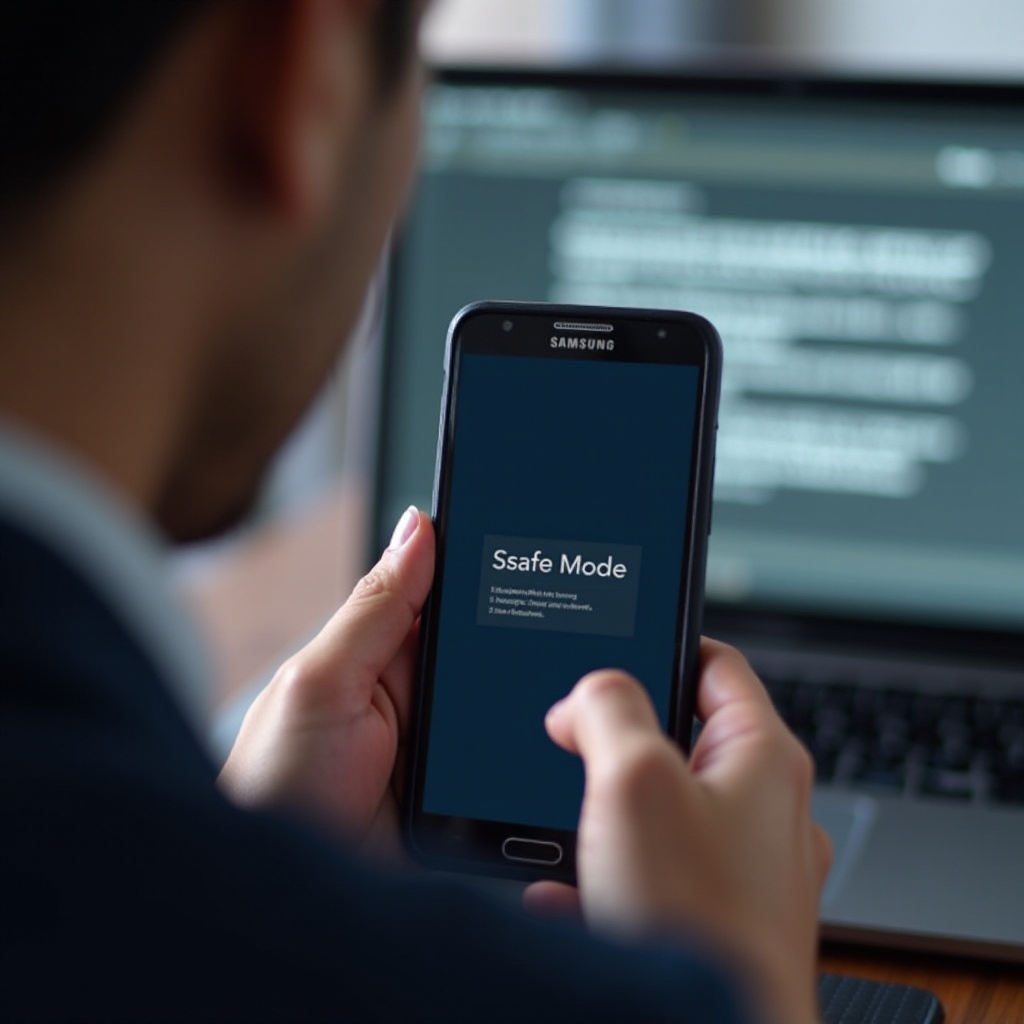
Update Software and Apps
Software updates are crucial for maintaining device efficiency and resolving known bugs, including sound-related problems.
-
Importance of Software Updates: Updates contain patches for vulnerabilities, ensuring compatibility with apps and hardware.
-
Steps to Update Software: Navigate to Settings > Software Update > Download and Install. Also, update individual apps via the Google Play Store.
With everything updated, yet sound persists as a problem, you might consider more intensive measures like a factory reset.
Perform a Factory Reset as a Last Resort
A factory reset can resolve deep-seated software problems, but it erases user data. Backup critical information before proceeding.
- Go to Settings > General Management > Reset.
- Select ‘Factory Data Reset’ and follow prompts.
Check the sound functionality post-reset. If issues continue, professional support is necessary.
Seek Professional Help
Persistent sound problems could be due to hardware issues, in which case professional assistance is advisable.
- Contact Samsung Support: Customer service can provide guidance suited to your phone model.
- Visit an Authorized Service Center: Professionals can diagnose and repair hardware faults, safeguarding your device from self-inflicted damage.
Conclusion
Restoring sound on your Samsung device can range from simple adjustments to complex troubleshooting. Address minor issues promptly to prevent escalation. Should sound problems persist beyond user fixes, expert interventions ensure your device continues functioning as intended.
Frequently Asked Questions
Why is there no sound on my Samsung phone during calls?
Ensure the call volume is turned up and that your phone isn’t connected to a Bluetooth device redirecting the audio.
How do I fix sound issues after a software update?
Restart your Samsung phone, or clear the cache partition to address glitches following a software update.
Will a factory reset fix my sound problems permanently?
A factory reset can resolve software issues, but if sound problems persist, hardware might be faulty and require professional repair.