How to Tell if Your Camera is Recognized by Your MacBook in 2024

Introduction

Whether you’re using your MacBook for video calls, photography, or any other application that requires the built-in camera, it’s crucial to ensure your camera is recognized by the system. There are several steps to verify and troubleshoot if your MacBook’s camera is not functioning as expected. This guide provides a thorough walkthrough to help you determine if your camera is recognized and what to do if it’s not.
Basic Preliminary Checks

Before diving into the system settings, you should start with some basic checks. These simple steps can often identify and resolve the issue without needing complex troubleshooting.

Check Physical Connections

  • Ensure that your camera is securely connected to your MacBook.
  • If you are using an external camera, double-check the USB or Thunderbolt connection.
  • Unplug and replug the camera to see if the system recognizes it.

Verify Camera Activation

  • Make sure your camera is turned on.
  • If your camera has a physical switch, ensure it is enabled.
  • For built-in cameras, check if the green light next to the webcam is illuminated when you attempt to use it.

macOS System Preferences and Settings

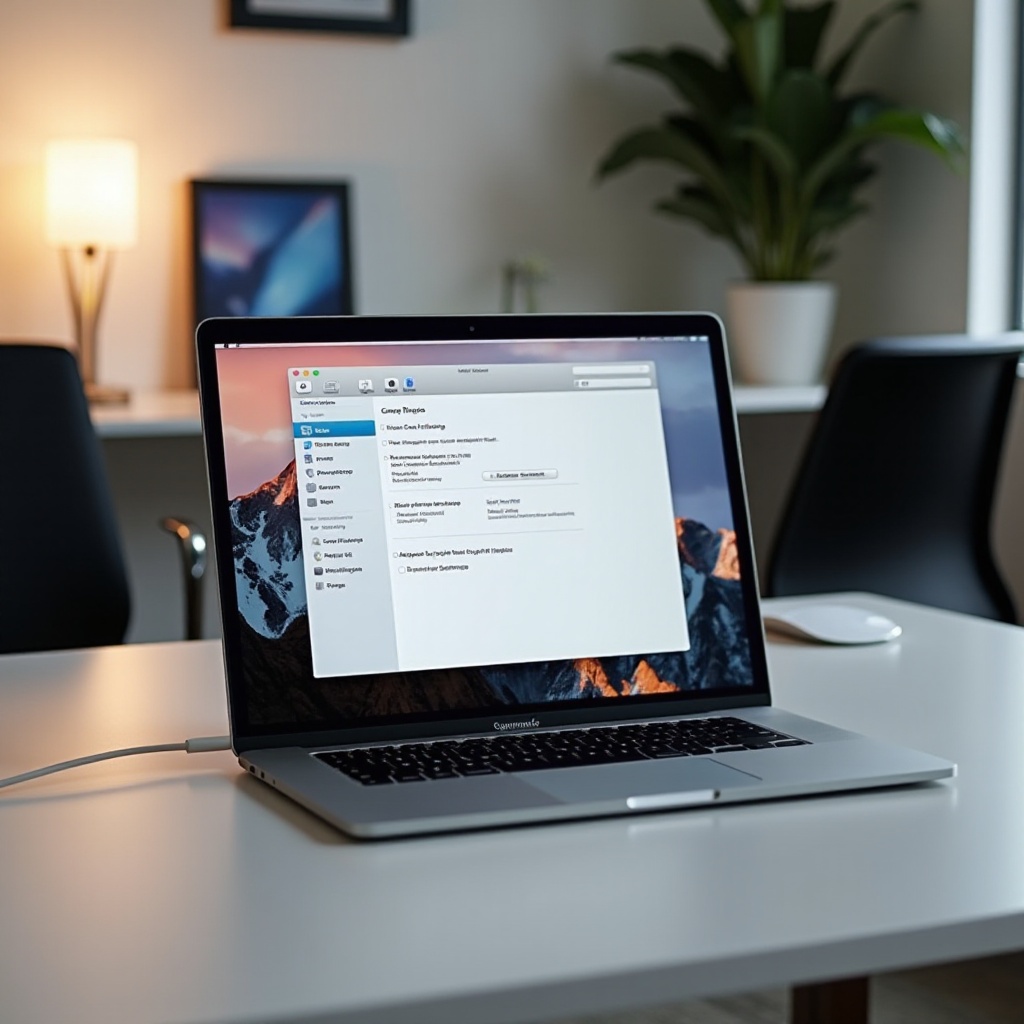
If the preliminary checks don’t resolve the issue, the next area to explore is the macOS System Preferences. This section includes adjusting camera permissions and ensuring your camera is correctly set up.

Accessing System Preferences

  • Click on the Apple menu in the top-left corner of your screen and select ‘System Preferences.
  • Navigate to ‘Security & Privacy’ and then click on the ‘Privacy’ tab.
  • Select ‘Camera’ from the left sidebar to view which apps have requested camera access.

Adjusting Camera Permissions

  • Ensure the apps you wish to use the camera with are checked.
  • If an app isn’t listed, you may need to add it manually or reopen the app for it to request permission again.
  • After making these adjustments, restart your MacBook to apply the changes.
how to tell if camera is recognized by macbook

System Information Utility

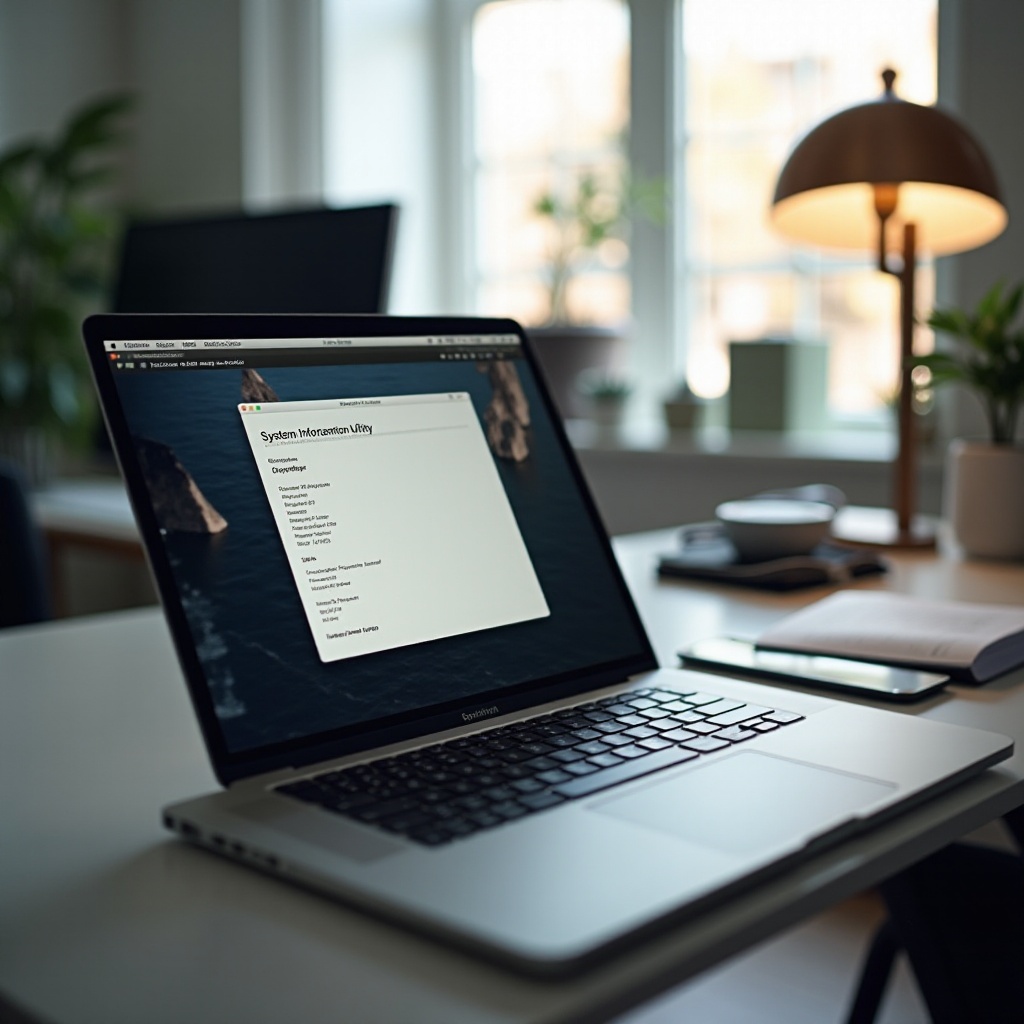
If your camera still isn’t recognized, the System Information Utility can provide deeper insights into the hardware status and connectivity of your camera.

Accessing System Information

  • Click on the Apple menu and select ‘About This Mac.
  • Click on ‘System Report’ to open the System Information Utility.
  • In the left sidebar, find and click on ‘Camera’ under the ‘Hardware’ section.

Verifying Camera Recognition in System Information

  • The System Information Utility lists all hardware components, including your camera.
  • Check if your camera appears in the list.
  • If it is not listed, there may be a hardware issue, or the camera may not be connected properly.
Application-Specific Troubleshooting

Sometimes, the issue may be related to specific applications rather than the camera or system settings. This section explores troubleshooting steps for individual applications.

Checking App-Specific Camera Settings

  • Open the application you are trying to use with the camera.
  • Navigate to the camera or video settings within the app.
  • Ensure the correct camera is selected from the available options.

Ensuring Software Updates

  • Keep your apps and macOS updated to the latest version.
  • Some bugs related to camera recognition can be resolved by software updates.
  • Visit the App Store and check for updates or the app vendor’s website.

Advanced Troubleshooting

If basic and application-specific troubleshooting steps have not resolved your issue, advanced methods may be necessary. This section covers using Terminal commands, identifying hardware conflicts, and resetting NVRAM and SMC.

Using Terminal Commands

  • Open the Terminal application from the Utilities folder.
  • Type the command sudo killall VDCAssistant and press Enter. This force kills the video camera assistant daemon, which can restart the camera function.

Identifying and Resolving Hardware Conflicts

  • Check for any external hardware that might be causing conflicts.
  • External devices like printers, other USB-connected components, and docks can interfere with the camera.

Resetting NVRAM and SMC

  • Shut down your MacBook.
  • Turn it on and immediately press and hold Option + Command + P + R.
  • Hold the keys for about 20 seconds, then release them.
  • Resetting the SMC is also an essential step and varies slightly by model. Generally, resetting SMC involves:
  • For non-removable battery models: Shut down, then hold Shift + Control + Option + Power button for 10 seconds.

Conclusion

Ensuring your camera is recognized by your MacBook is essential for various tasks, from video conferencing to content creation. By following the steps in this guide, you should be able to troubleshoot the issue and get back to using your camera with ease. Remember to keep your system updated and regularly check hardware connections.

Frequently Asked Questions

How do I reset NVRAM and SMC on my MacBook?

To reset NVRAM, restart your MacBook and hold Option + Command + P + R for 20 seconds. For SMC reset, the steps vary by model; generally, press Shift + Control + Option + Power for 10 seconds on non-removable battery models.

What do I do if my camera still isn’t recognized after troubleshooting?

If your camera still isn’t recognized, it may be a hardware defect. Contact Apple Support or visit an Apple Service Provider for further assistance.

Are there any external factors that could prevent my camera from being recognized?

Yes, external factors such as software conflicts, USB hubs, certain peripherals, and outdated drivers can prevent camera recognition. Disconnect external devices to identify if any are causing conflicts.

How to Tell if Your Camera is Recognized by Your MacBook in 2024

how to tell if camera is recognized by macbook

Introduction

Whether you’re using your MacBook for video calls, photography, or any other application that requires the built-in camera, it’s crucial to ensure your camera is recognized by the system. There are several steps to verify and troubleshoot if your MacBook’s camera is not functioning as expected. This guide provides a thorough walkthrough to help you determine if your camera is recognized and what to do if it’s not.

Basic Preliminary Checks

Before diving into the system settings, you should start with some basic checks. These simple steps can often identify and resolve the issue without needing complex troubleshooting.

Check Physical Connections

  • Ensure that your camera is securely connected to your MacBook.
  • If you are using an external camera, double-check the USB or Thunderbolt connection.
  • Unplug and replug the camera to see if the system recognizes it.

Verify Camera Activation

  • Make sure your camera is turned on.
  • If your camera has a physical switch, ensure it is enabled.
  • For built-in cameras, check if the green light next to the webcam is illuminated when you attempt to use it.

macOS System Preferences and Settings

If the preliminary checks don’t resolve the issue, the next area to explore is the macOS System Preferences. This section includes adjusting camera permissions and ensuring your camera is correctly set up.

Accessing System Preferences

  • Click on the Apple menu in the top-left corner of your screen and select ‘System Preferences.
  • Navigate to ‘Security & Privacy’ and then click on the ‘Privacy’ tab.
  • Select ‘Camera’ from the left sidebar to view which apps have requested camera access.

Adjusting Camera Permissions

  • Ensure the apps you wish to use the camera with are checked.
  • If an app isn’t listed, you may need to add it manually or reopen the app for it to request permission again.
  • After making these adjustments, restart your MacBook to apply the changes.

how to tell if camera is recognized by macbook

System Information Utility

If your camera still isn’t recognized, the System Information Utility can provide deeper insights into the hardware status and connectivity of your camera.

Accessing System Information

  • Click on the Apple menu and select ‘About This Mac.
  • Click on ‘System Report’ to open the System Information Utility.
  • In the left sidebar, find and click on ‘Camera’ under the ‘Hardware’ section.

Verifying Camera Recognition in System Information

  • The System Information Utility lists all hardware components, including your camera.
  • Check if your camera appears in the list.
  • If it is not listed, there may be a hardware issue, or the camera may not be connected properly.

Application-Specific Troubleshooting

Sometimes, the issue may be related to specific applications rather than the camera or system settings. This section explores troubleshooting steps for individual applications.

Checking App-Specific Camera Settings

  • Open the application you are trying to use with the camera.
  • Navigate to the camera or video settings within the app.
  • Ensure the correct camera is selected from the available options.

Ensuring Software Updates

  • Keep your apps and macOS updated to the latest version.
  • Some bugs related to camera recognition can be resolved by software updates.
  • Visit the App Store and check for updates or the app vendor’s website.

Advanced Troubleshooting

If basic and application-specific troubleshooting steps have not resolved your issue, advanced methods may be necessary. This section covers using Terminal commands, identifying hardware conflicts, and resetting NVRAM and SMC.

Using Terminal Commands

  • Open the Terminal application from the Utilities folder.
  • Type the command sudo killall VDCAssistant and press Enter. This force kills the video camera assistant daemon, which can restart the camera function.

Identifying and Resolving Hardware Conflicts

  • Check for any external hardware that might be causing conflicts.
  • External devices like printers, other USB-connected components, and docks can interfere with the camera.

Resetting NVRAM and SMC

  • Shut down your MacBook.
  • Turn it on and immediately press and hold Option + Command + P + R.
  • Hold the keys for about 20 seconds, then release them.
  • Resetting the SMC is also an essential step and varies slightly by model. Generally, resetting SMC involves:
  • For non-removable battery models: Shut down, then hold Shift + Control + Option + Power button for 10 seconds.

Conclusion

Ensuring your camera is recognized by your MacBook is essential for various tasks, from video conferencing to content creation. By following the steps in this guide, you should be able to troubleshoot the issue and get back to using your camera with ease. Remember to keep your system updated and regularly check hardware connections.

Frequently Asked Questions

How do I reset NVRAM and SMC on my MacBook?

To reset NVRAM, restart your MacBook and hold Option + Command + P + R for 20 seconds. For SMC reset, the steps vary by model; generally, press Shift + Control + Option + Power for 10 seconds on non-removable battery models.

What do I do if my camera still isn’t recognized after troubleshooting?

If your camera still isn’t recognized, it may be a hardware defect. Contact Apple Support or visit an Apple Service Provider for further assistance.

Are there any external factors that could prevent my camera from being recognized?

Yes, external factors such as software conflicts, USB hubs, certain peripherals, and outdated drivers can prevent camera recognition. Disconnect external devices to identify if any are causing conflicts.