Introduction
Pairing your Pixel Buds with an iPhone may sound complicated, but it is a simple process that can greatly improve your audio experience. With a few straightforward steps, you can connect your Pixel Buds and iPhone in no time, unlocking the potential of both devices. In this guide, we will provide detailed steps and tips to ensure you have a seamless pairing experience.
Understanding Pixel Buds and iPhone Compatibility
Pixel Buds are renowned for their design and connectivity, primarily built for Android devices; however, they work harmoniously with iPhones too. To get started, it’s important to know about the features of Pixel Buds and how they can enhance your iPhone experience.
-
Key Features of Pixel Buds: The Pixel Buds offer excellent audio quality, noise cancellation, and intuitive controls. When you understand these features, you can maximize their use on an iPhone.
-
iPhone Models Compatible with Pixel Buds: Pixel Buds are generally compatible with iPhone models from iPhone 6S onwards. Ensuring your iPhone runs the latest iOS improves compatibility and performance.
With this understanding, you’re ready to begin the pairing process, confident that your devices are compatible.
Preparing for a Seamless Pairing Experience
Preparation is key to ensuring a smooth pairing experience. Before starting the process, there are a few areas to check:
-
Ensuring Pixel Buds are Charged and Updated: First, ensure your Pixel Buds are fully charged. Check for any available firmware updates to ensure smooth operation and enhanced features.
-
Verifying iPhone Software Version: To avoid compatibility issues, ensure your iPhone is running the latest version of iOS. Navigate to ‘Settings’ > ‘General’ > ‘Software Update’ to install any updates.
After making these preparations, you are in a good position to connect your devices seamlessly.
Step-by-Step Guide to Pair Pixel Buds with iPhone
Here’s how to connect your Pixel Buds to your iPhone:
-
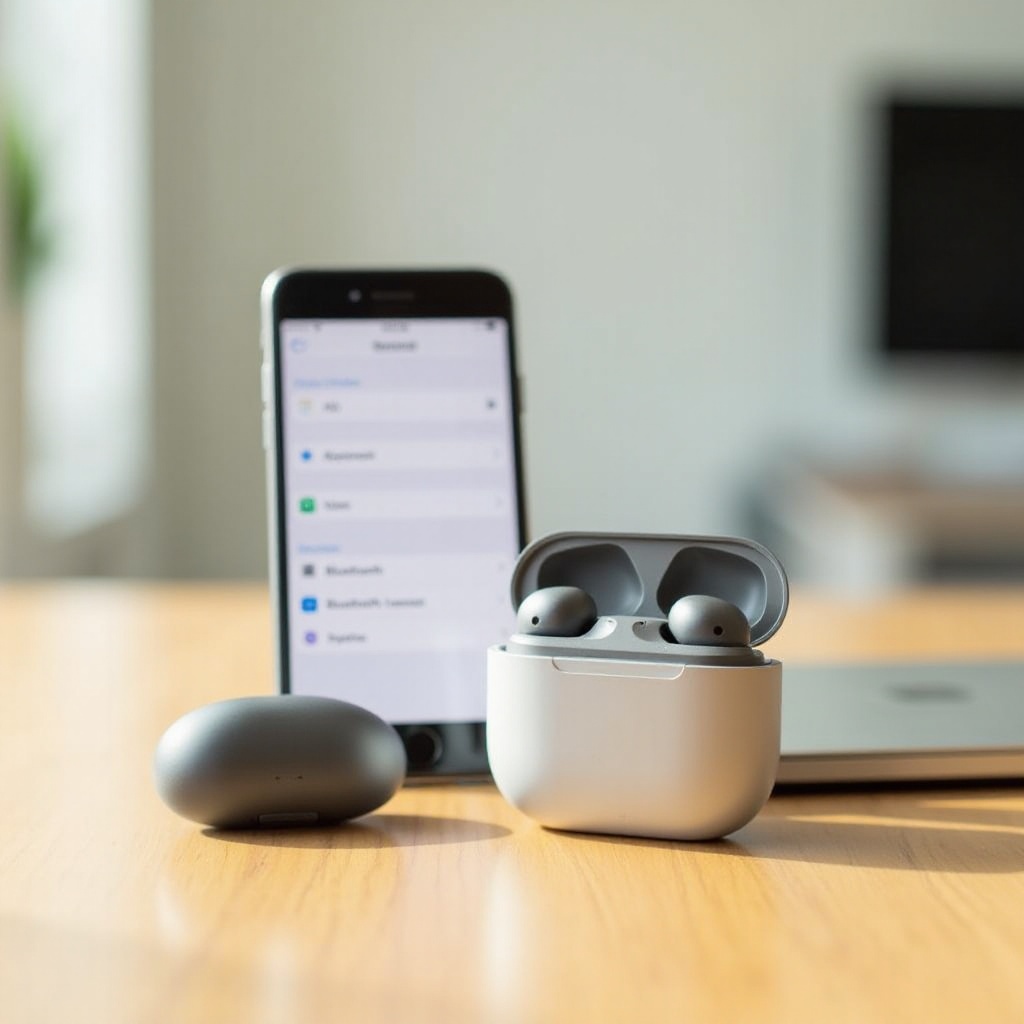
Initial Setup: Activating Pixel Buds. Place your Pixel Buds in the charging case and open the lid. The status light on the case should blink, indicating the buds are ready to pair.
-
Navigating Bluetooth Settings on iPhone. Open your iPhone’s ‘Settings’, then tap ‘Bluetooth’. Make sure Bluetooth is turned on, and wait for your iPhone to detect nearby devices.
-
Confirming Pairing and Connection Verification. When Pixel Buds appear in the list of discovered devices, tap to pair. The status light will stop blinking when successfully connected, confirming a successful pairing.
With your Pixel Buds paired, you’re now ready to take advantage of their high-quality audio capabilities.
Enhancing Your Experience with Pixel Buds and iPhone
Connecting the devices marks only the beginning. There are various ways to enhance your listening experience:
-
Customizing Audio Settings on iPhone: Modify sound preferences by navigating to ‘Settings’ > ‘Music’ > ‘EQ’ to adjust the audio settings according to your needs.
-
Utilizing Google Assistant with iPhone: Although the default voice assistant on iPhones is Siri, you can still use Google Assistant via the Google Assistant app, allowing you to benefit from voice commands and hands-free capabilities with your Pixel Buds.
These enhancements enable a tailored audio experience, making the Pixel Buds and iPhone combo a powerful tool.
Troubleshooting Common Pairing Issues
While a seamless connection is the goal, issues may occur. Here are solutions to common problems:
-
Addressing Connectivity Problems: If your Pixel Buds disconnect frequently, ensure they are in range of your iPhone. Minimize interference by turning off other Bluetooth devices.
-
Seeking Support and Additional Resources: For persistent issues, look for support from Google or Apple’s official resources. Tutorials and forums can offer solutions for specific issues.
These troubleshooting steps should resolve most common connectivity issues, ensuring a more consistent experience.
Maintenance and Care for Long-lasting Use
Properly maintaining your Pixel Buds is crucial for long-lasting performance:
-
Cleaning Pixel Buds Properly: Clean your Pixel Buds regularly with a soft, dry cloth to remove debris and prevent sound quality deterioration.
-
Storing Pixel Buds Safely: Keep your Pixel Buds in their case when not in use to protect them from damage and keep them charged for your next use.
With these maintenance tips, your Pixel Buds can remain in optimal condition over long-term use.
Conclusion
Pairing your Pixel Buds with an iPhone is a straightforward process that, once completed, offers enhanced sound quality and convenience. By following these steps and tips, you can ensure a smooth setup, allowing you to focus on enjoying your audio experiences. Maintain your Pixel Buds properly, and they’ll provide you with years of reliable service.
Frequently Asked Questions
Can I use Pixel Buds with older iPhone models?
Yes, as long as your older iPhone supports Bluetooth 4.0 or higher, you should be able to pair Pixel Buds successfully.
What should I do if my Pixel Buds won’t connect to my iPhone?
Ensure that the Bluetooth on your iPhone is active, and try forgetting and re-pairing the device. Restarting both devices can also help resolve the issue.
How do I update the firmware on my Pixel Buds?
Use the Pixel Buds app on an Android device to check and install any available updates for your Pixel Buds firmware. Unfortunately, firmware cannot be updated directly via an iPhone.