Introduction
The Sony WH-1000XM5 headphones are celebrated for their superior noise-canceling and immersive sound quality. Connecting them properly ensures you can leverage all their features, whether for music, calls, or entertainment. This guide will take you through the process of connecting these headphones to various devices while also addressing potential issues you might encounter.

Connecting Sony WH-1000XM5 to Mobile Devices
Seamlessly connecting to mobile devices is one of the primary uses of the Sony WH-1000XM5. Here is how you can do it for both Android and iOS devices.
Connecting to an Android Device
- Start by putting your headphones in pairing mode by pressing the power button until the LED indicator flashes.
- Open ‘Settings’ on your Android device and go to ‘Connections’.
- Select ‘Bluetooth’ and turn it on.
- Wait for ‘WH-1000XM5’ to appear as an available device and select it to establish the connection.
Connecting to an iOS Device
- Begin by placing the headphones in pairing mode.
- Navigate to your iPhone’s ‘Settings’ and choose ‘Bluetooth’.
- Enable Bluetooth, find ‘WH-1000XM5’ under the list of devices, and tap to connect.
After establishing a connection with your mobile device, you’re equipped to enjoy high-quality sound on the go. But, when it comes to a desktop or laptop, the process differs slightly.
Pairing Sony WH-1000XM5 with Computers
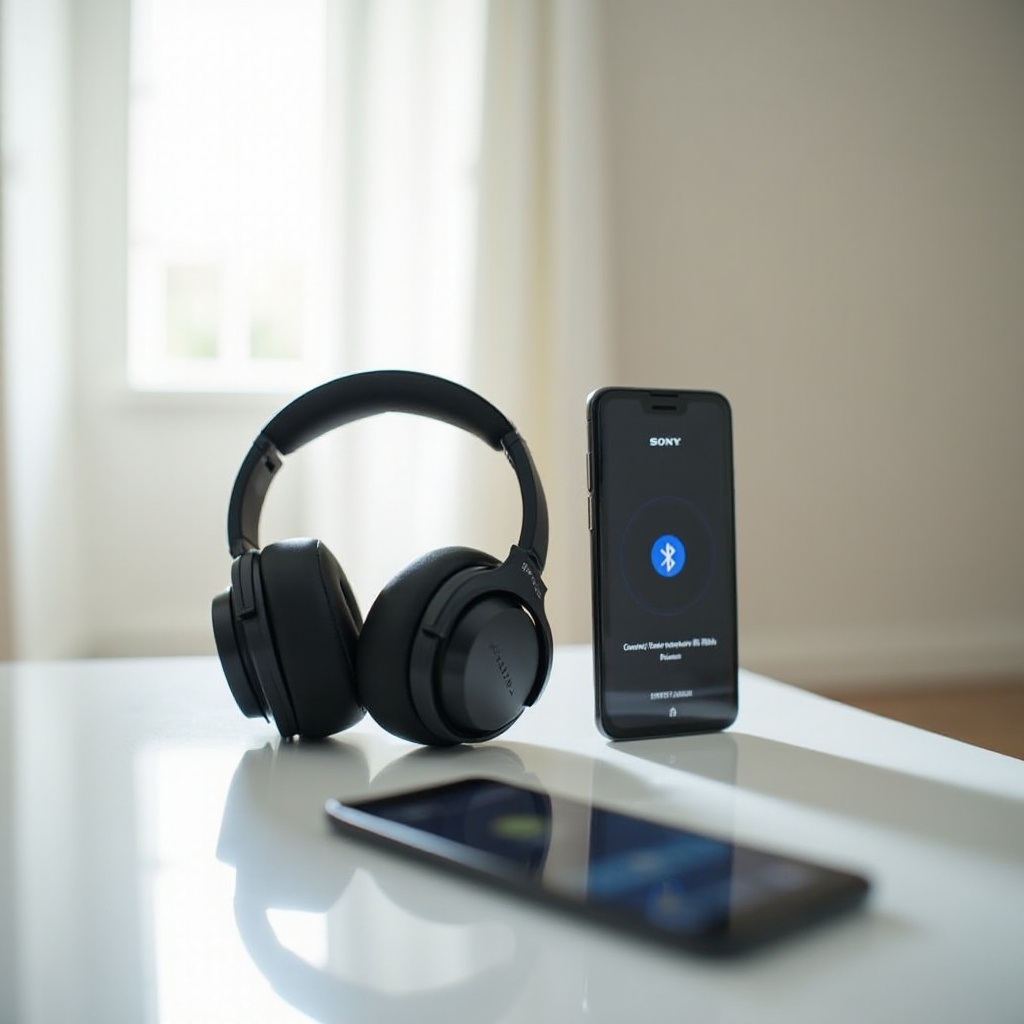
Connecting your headphones to a computer can greatly enhance your work or leisure experience. Here’s how you can do it on both Windows and Mac systems.
Windows PC Setup
- Activate pairing mode on your headphones.
- On your PC, go to ‘Settings’ > ‘Devices’.
- Click ‘Bluetooth & other devices’, turn on Bluetooth, and click ‘Add Bluetooth or other device’.
- Choose ‘Bluetooth’, locate ‘WH-1000XM5’, and connect.
Mac Setup
- Enter pairing mode on the headphones.
- On your Mac, access ‘System Preferences’, then select ‘Bluetooth’.
- Enable Bluetooth, find ‘WH-1000XM5’ from the list, and connect.
With your computer connected, you can utilize features such as noise cancelation and enjoy uninterrupted sessions whether for productivity or entertainment. Exploring these advanced features can extend your headphone’s utility even further.
Using Advanced Features for Connection
Sony WH-1000XM5 headphones offer advanced connectivity options that enhance user convenience, especially for those who regularly switch between devices.
Understanding Multipoint Connectivity
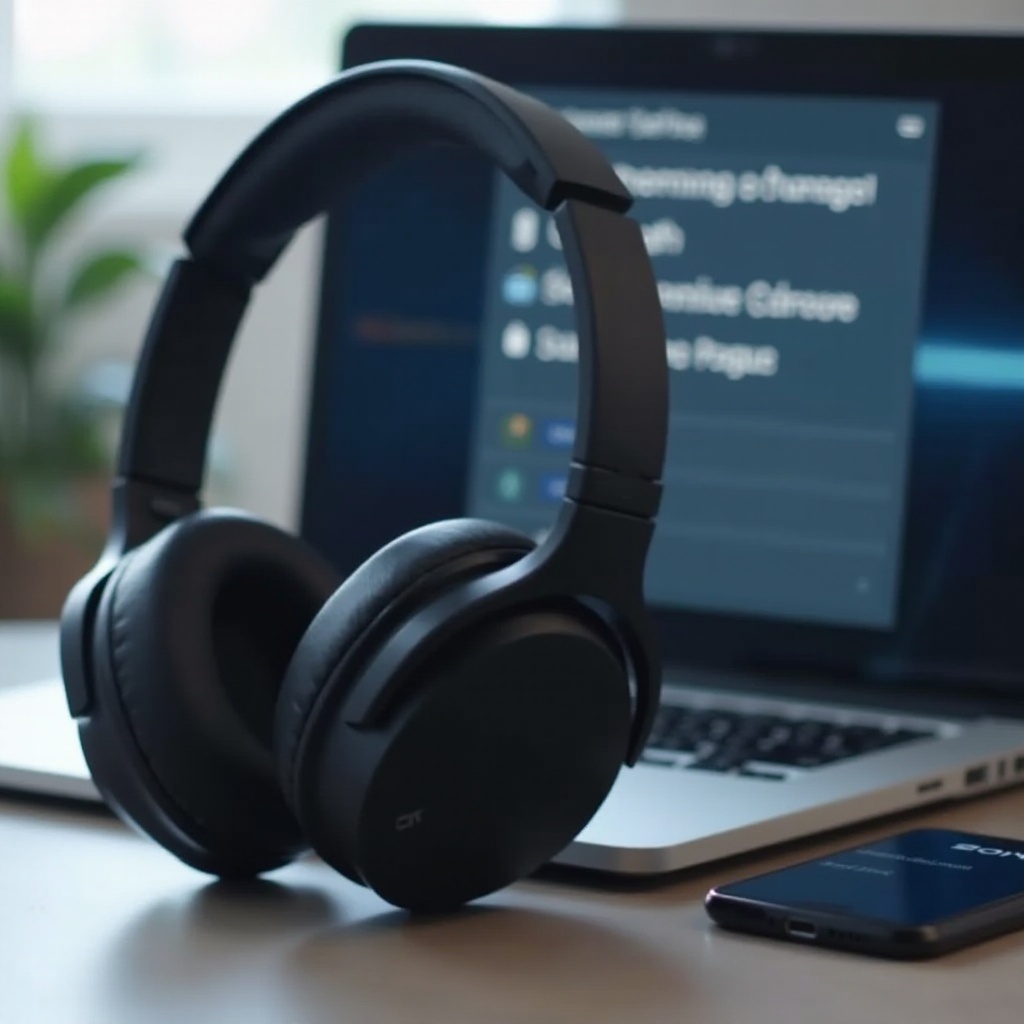
This feature enables the headphones to pair with two devices at once, allowing for seamless switching. Connect as usual to one device, then follow the pairing process with a second device without disconnecting the first.
Utilizing NFC for Quick Pairing
For Android devices with NFC, pairing is expedited by simply touching your phone to the NFC logo on the headphones, reducing setup time.
Advanced features improve not just usability but also the overall experience by making device management more efficient. However, even with the best technology, connection issues can arise.
Troubleshooting Common Connection Issues
Occasionally, users might face connectivity problems. Here’s how to address some common issues with the Sony WH-1000XM5.
Resetting the Headphones
If the headphones fail to connect, resetting them may help. Hold down the power button for at least 7 seconds until you hear a voice notification, indicating a reset.
Handling Connectivity Drops
To resolve connectivity drops, ensure your device and headphones are within range and away from other interfering devices. Restarting both devices often resolves persistent drops.
Troubleshooting effectively ensures long-term performance and maintains the quality of your listening experience. By resolving common issues, you can ensure seamless connectivity across all your devices.
Conclusion
Successfully connecting your Sony WH-1000XM5 to any device is straightforward with the right guidance, allowing you to maximize your audio experience. We’ve discussed steps for mobile and computer connections and explored the advanced features that make these headphones versatile. Now, you’re ready to enjoy unparalleled audio quality.
Frequently Asked Questions
Why won’t my Sony WH-1000XM5 connect to my device?
Ensure the device’s Bluetooth is active and headphones are in pairing mode. Resetting or refreshing Bluetooth may resolve the issue.
Can I connect my Sony WH-1000XM5 to multiple devices simultaneously?
Yes, multipoint connectivity allows simultaneous connection to two devices, like a phone and a laptop, for easy switching.
How do I update the firmware on my Sony WH-1000XM5 for better connectivity?
Use the Sony Headphones Connect app to update firmware. Connect your headphones, open the app, and follow update instructions if available.