Introduction
Connecting an HP printer to a Chromebook can seem daunting, but it’s not as hard as you might think. Whether you need to print documents for work, school, or personal use, understanding how to set up your printer with your Chromebook is vital. This guide will provide clear and concise steps to help you make this connection. Before diving in, it’s important to gather all necessary tools and ensure your Chromebook and printer are ready for the process.
Requirements and Preparations
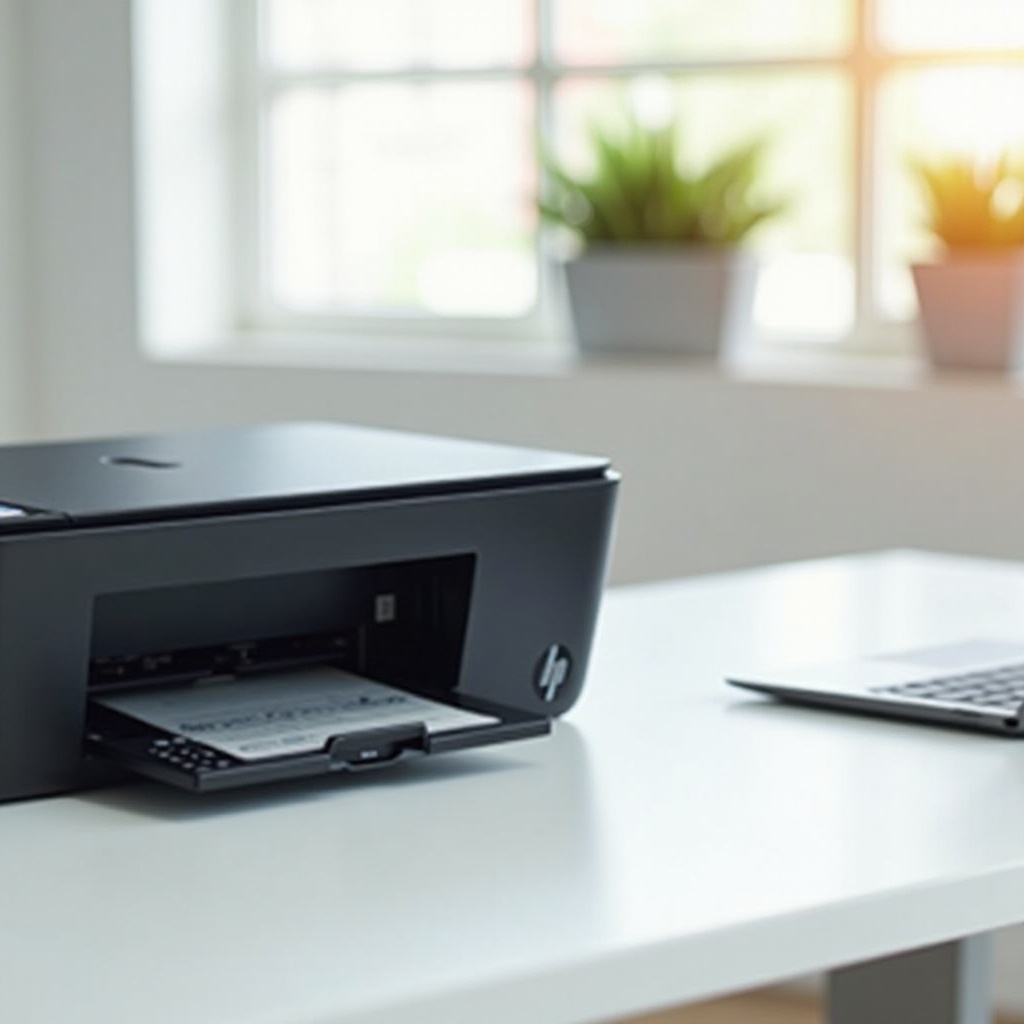
Before starting the connection process, it’s essential to have a few prerequisites in place. Here’s what you’ll need:
- Compatible HP Printer: Ensure your HP printer is compatible with Chromebooks. Most modern HP printers are, but it’s best to verify.
- Wi-Fi Network: A stable Wi-Fi connection is crucial for wireless printing. Have the network name (SSID) and password ready.
- Chromebook and HP Printer: Ensure both devices are turned on and updated to the latest software versions.
- HP Printer USB Cable: While the main focus is on wireless connectivity, having a USB cable as a backup can be beneficial.
Having these tools ready will streamline the connecting process, allowing for a seamless setup experience.
Connecting Your HP Printer to Wi-Fi
Establishing a Wi-Fi connection for your printer is the first step towards seamless printing:
- Turn on the Printer: Ensure your HP printer is powered up.
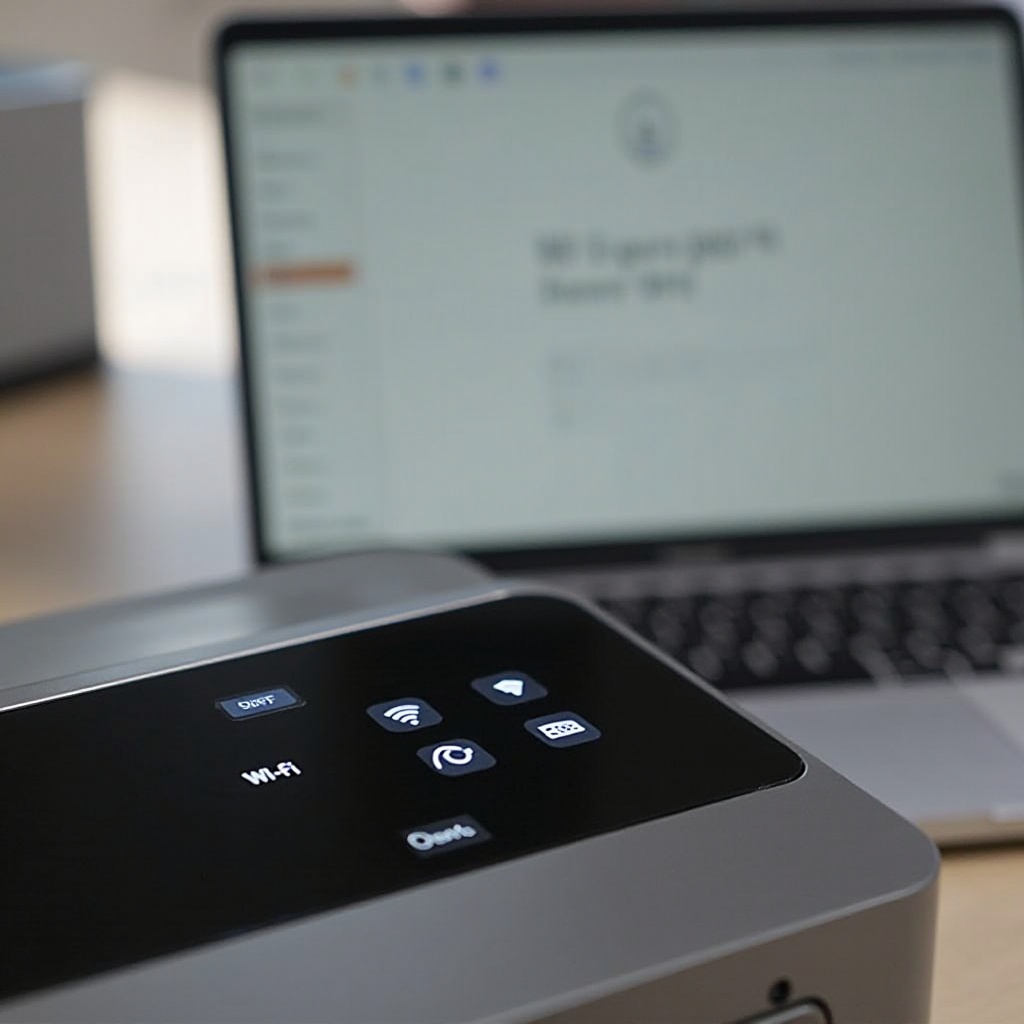
- Access Printer Settings: Use the printer’s control panel to navigate to the network settings.
- Select Wi-Fi Setup Wizard: This option will guide you through finding and connecting to your network.
- Enter Network Details: Input your Wi-Fi network name (SSID) and password.
- Confirm Connection: Once connected, the printer should display a confirmation message.
These steps ensure your printer is connected to the same network as your Chromebook, facilitating easy communication between the devices.
Installing HP Printer on Chromebook
Once your printer is connected to the Wi-Fi, the next step is to set it up on your Chromebook. There are a couple of methods you can use to achieve this.
Using Built-in Printer Setup
- Open Settings: Click on the time in the bottom-right corner of your Chromebook screen and select ‘Settings’.
- Advanced Settings: Scroll down and click ‘Advanced’ to expand more options.
- Printers: Under the ‘Printing’ section, select ‘Printers’.
- Add Printer: Click on ‘Add Printer,’ and your Chromebook will search for printers on the network.
- Select Your Printer: Choose your HP printer from the list and follow the on-screen instructions to complete the setup.
Using HP Apps and Extensions
To access additional features, consider using HP apps and extensions:
1. Visit Chrome Web Store: Go to the Chrome Web Store and search for ‘HP Print for Chrome’.
2. Install Extension: Click on ‘Add to Chrome’ and follow the prompts to install the extension.
3. Open the Extension: Once installed, open the extension and follow the setup instructions.
This method provides extra functionalities like printing from cloud services and accessing advanced printer settings.
Transitioning to a different method of connecting your printer can be essential if you encounter issues with the wireless setup. The next section covers connecting your printer using a USB cable.
Connecting via USB Cable
If a wired connection is preferable:
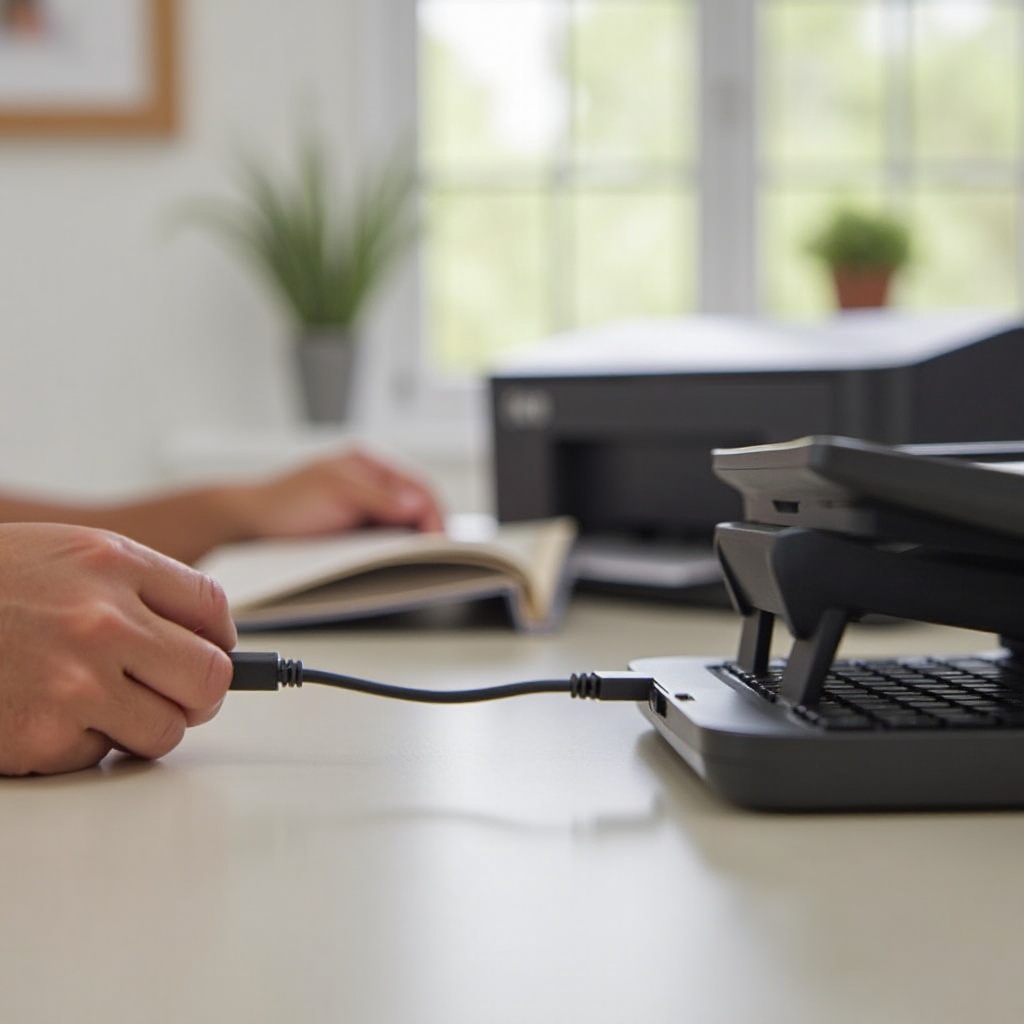
1. Prepare the USB Cable: Ensure you have a compatible USB cable.
2. Connect the Printer to Chromebook: Insert one end of the cable into your printer and the other end into your Chromebook.
3. Automatic Detection: Your Chromebook will automatically detect the printer and prompt installation.
While wireless printing is more convenient, a USB connection can be an excellent fallback or primary method if you face Wi-Fi issues.
Troubleshooting Common Issues
Sometimes, you might encounter issues during the setup process. Here are common problems and their solutions:
Printer Not Found
- Check Wi-Fi Connection: Ensure both your printer and Chromebook are connected to the same network.
- Restart Devices: Try restarting both your printer and Chromebook to refresh the connection.
- Update Firmware: Ensure your printer’s firmware is up to date, as outdated software can cause connectivity issues.
Connection Errors
- Re-enter Network Credentials: Double-check the network name and password to ensure accuracy.
- Move Devices Closer: Bring your printer closer to your Wi-Fi router to improve signal strength.
- Reset Printer Network Settings: Reset the Wi-Fi settings on your printer and try reconnecting.
These solutions should resolve most issues encountered during the setup process, allowing for smoother printing operations.
For users looking to make the most out of their HP printer, exploring advanced printing options can be a game-changer. These options offer enhanced convenience and extended functionalities.
Advanced Printing Options
For those looking to leverage advanced features, here are some options:
Using Cloud Printing Services
- Google Cloud Print: This service allows you to print over the internet. Simply enable it in your printer settings and link it to your Google account.
- HP ePrint: Register your printer with HP ePrint and get a unique email address to send print jobs directly to your printer.
Utilizing HP Smart App
- Download HP Smart App: Available on both Android and iOS, this app offers remote printing, scanning, and maintenance options.
- Link Your Printer: Follow the in-app instructions to connect your printer to the HP Smart network.
These advanced options enhance the convenience and capabilities of your printing tasks.
Conclusion
Connecting your HP printer to a Chromebook doesn’t have to be challenging. With the right preparation and following the steps outlined, you should have your devices working in harmony. Whether you opt for wireless or wired connections, or choose to explore advanced options, printing from your Chromebook can be straightforward and efficient.
Frequently Asked Questions
What should I do if my Chromebook doesn’t recognize my HP printer?
Ensure that both your Chromebook and HP printer are connected to the same Wi-Fi network. Restart both devices and check for any available updates.
Are all HP printers compatible with Chromebooks?
Most modern HP printers are compatible with Chromebooks. However, it’s always good to check the specifications or the HP support website.
Can I print wirelessly from my Chromebook to my HP printer?
Yes, as long as both your Chromebook and HP printer are on the same Wi-Fi network, you can print wirelessly. Utilize tools like the ‘HP Print for Chrome’ extension for enhanced functionality.